Download v1.2
This page details how you can get Triggerbot up and running on your system. You can download the latest version of Triggerbot from the link in the top banner. Once you have the zip file downloaded, open the file by double clicking it. Inside you'll see the actual setup.exe file for Triggerbot. When you double click this to run it, you'll most likely get the following popup:
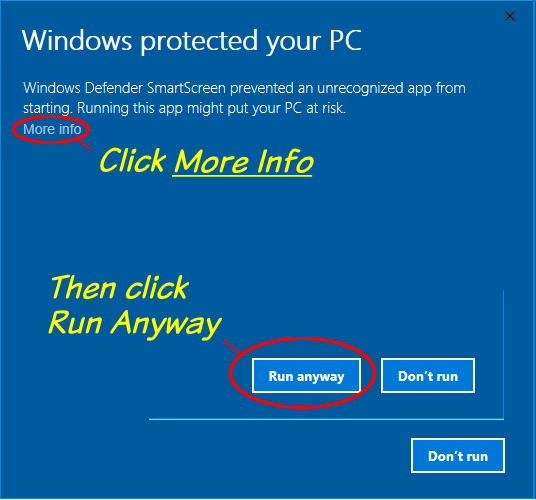
This is a standard Windows warning that appears when you try to run an executable file that was downloaded from the internet. Since Triggerbot is not yet widely known, Windows doesn't have any information about it, and so it gives you this warning. You can click the "Run anyway" button to proceed with the installation. If you want to be extra cautious, you can also scan the file with your antivirus software before running it. On our end, we test the file to make sure it hasn't been maliciously modified, to ensure we're impervious to any hacking.
After you click "Run anyway", the installer will launch and guide you through the installation process. The installer is straightforward and will install Triggerbot on your system. Once the installation is complete, you can launch Triggerbot from the Start menu or from the desktop shortcut if you chose to create one during installation (this is the default). 
When you launch Triggerbot for the first time, it begins by scanning your IMVU inventory for products that have trigger tunes. This is necessary because Triggerbot needs to know which products in your inventory have trigger tunes and the duration of each song segment, so that it can play them for you accurately. The scanning process may take a few minutes, especially if you have a large inventory, but it's a one-time process that only happens on the first launch. After the scan is complete, Triggerbot will be ready to use and you can start playing your trigger tunes in IMVU.
The next time you launch Triggerbot, it will only do the scanning process on any new items that have been added to your inventory, and will be ready to use almost immediately. If you add new products with trigger tunes to your inventory while IMVU is running, you can initiate a rescan with the "Scan New" button from the Tools tab in Triggerbot.
Triggerbot has an automatic update feature that checks for new versions of the software. When a new version is available, Triggerbot will download and install the update with your permission. This ensures that you always have the latest features and bug fixes without having to manually check for updates. You can also check for updates manually on the home page.
If you ever want to uninstall Triggerbot, you can do so from the Windows Settings app. Just go to "Apps & features", find Triggerbot in the list of installed apps, and click "Uninstall". This will remove Triggerbot from your system. Although after you use it, you probably won't want to do that.
If you have problems during the use of Triggerbot, be aware that re-installing usually has no effect. Instead, please post your problem in the Triggerless Discord server, in the #triggerbot-issues channel, and we'll do our best to help you out. If you have a problem with the installer itself, please also post about it in the Discord server, and we'll investigate it as soon as we can.